Quick answer
To make a Live Wallpaper on iPhone you need a Live Photo the Lock Screen can play, then you set it with Live turned on. You can use a Live Photo you took yourself, or turn any still photo into one. It works on iOS 17 and later, and the motion plays each time you wake your iPhone.
Before you start
- Your iPhone runs iOS 17 or later (Settings > General > About).
- Low Power Mode is off. iOS pauses wallpaper motion while it is on.
- Reduce Motion is off (Settings > Accessibility > Motion).
Which iPhones can make a Live Wallpaper
You can make a Live Wallpaper on any iPhone that runs iOS 17 or later, which means iPhone XS, iPhone XR and every newer model. iOS 16 dropped Live Photo wallpapers, and iOS 17 brought them back in the form you see today: the photo plays on its own each time you wake the phone. iOS 18 and iOS 26 work the same way.
Method 1: Use a Live Photo you took
If you took the photo with the iPhone camera and Live was on, you can make a Live Wallpaper from it directly.
- Open the Live Photo in the Photos app.
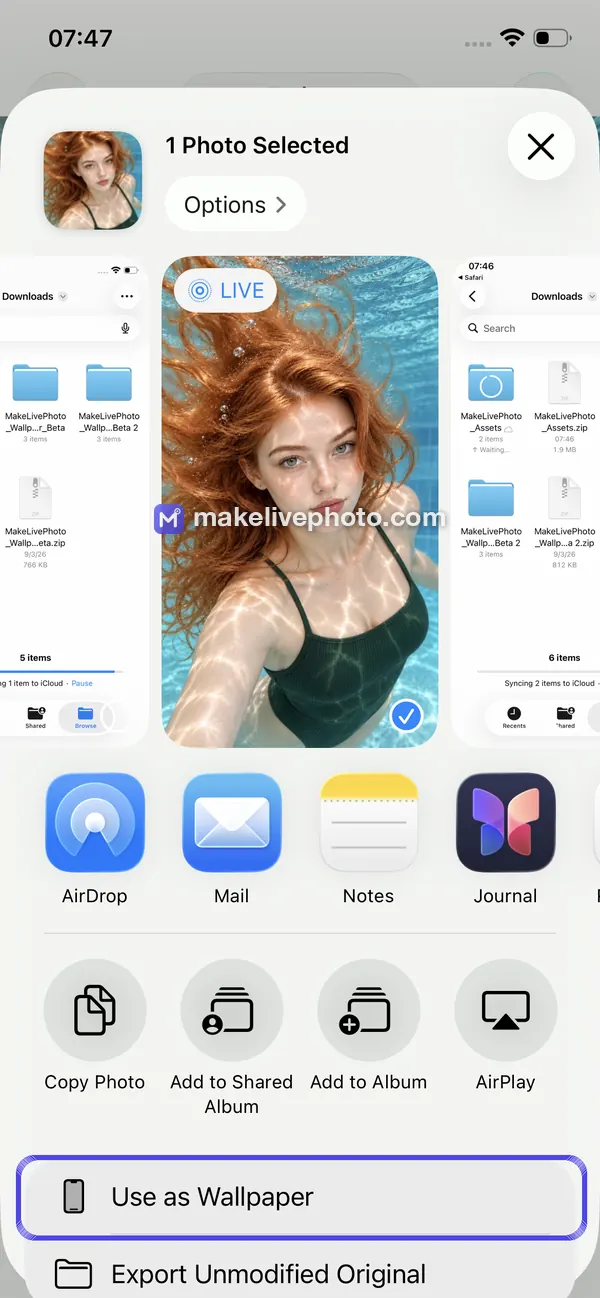
- Tap Share, then Use as Wallpaper.
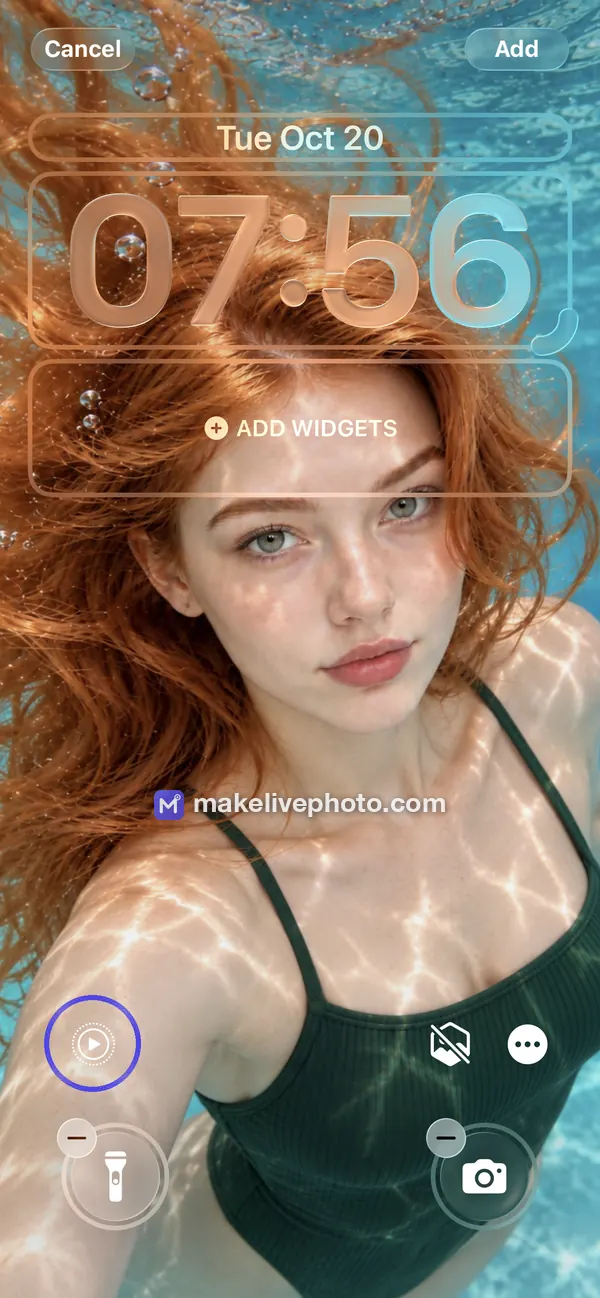
- Make sure the play button in the bottom-left corner is on, then tap Add.
Many camera Live Photos are refused with "Motion Not Available", especially edited or cropped ones. If that happens, see how to fix "Motion Not Available", or use method 2.
Method 2: Make a Live Wallpaper from any photo
You can make a Live Wallpaper from any picture: a pet, a portrait, a landscape, even a screenshot. No app is needed; it runs in Safari.
- Open Live Wallpaper Maker on your iPhone and upload a photo.
- Pick a motion: Gentle Zoom, Floating Pan or Handheld Shake.
- Tap Start generating and check the Lock Screen preview. You see how it moves before you pay.
- Download it, then follow the three on-screen steps to save it to Photos.
- Set it as your wallpaper with the steps below.
Method 3: Make a Live Wallpaper from a video
To make a Live Wallpaper from a moment in a video, turn it into a Live Photo first. Most converter apps make files that show "Motion Not Available" as a wallpaper. Our Video to Live Photo converter works in Safari: upload the video, pick the moment, and choose Live Wallpaper to get a file built for the Lock Screen.
iOS cannot set a video as a wallpaper directly, so this step is needed even for videos you shot yourself. The Live Wallpaper is always 3 seconds long. If the video has sound, the Live Photo keeps it in Photos, while the Lock Screen plays it silently. For a TikTok or Instagram clip, save the video to your phone first.
How to set a Live Photo as your Lock Screen
- Open Settings > Wallpaper and tap Add New Wallpaper.
- Tap Photos, then Live Photos, and pick your Live Photo.
- Check that the play button in the bottom-left corner is on, so the photo plays when you wake your iPhone.
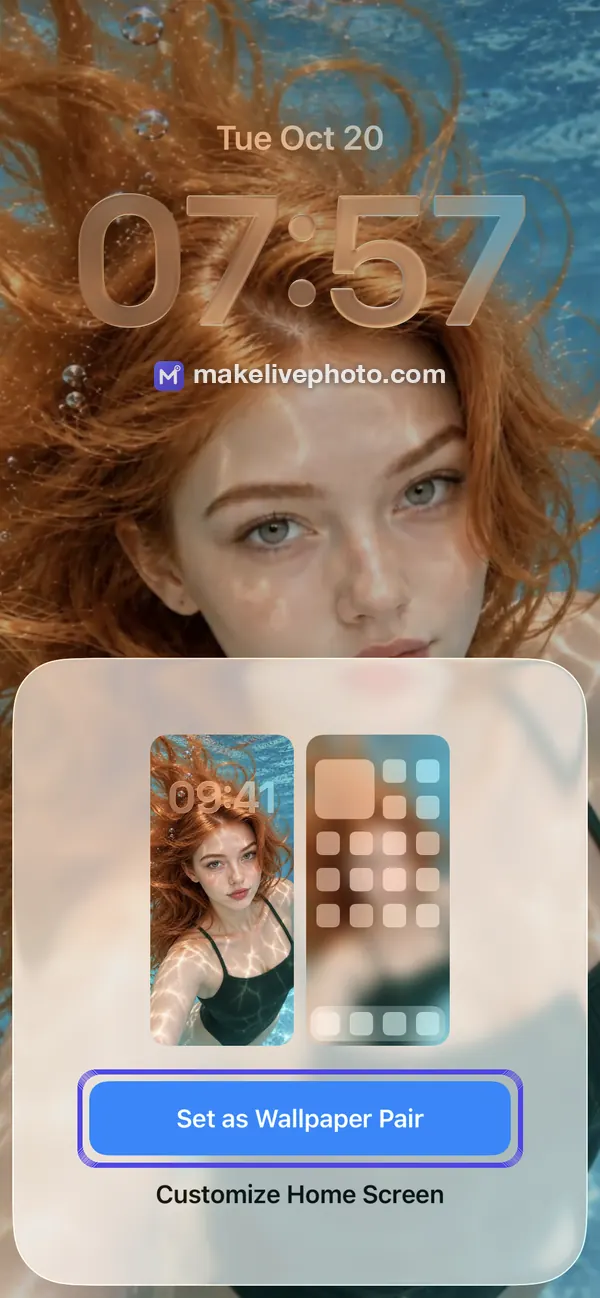
- Tap Add, then Set as Wallpaper Pair.
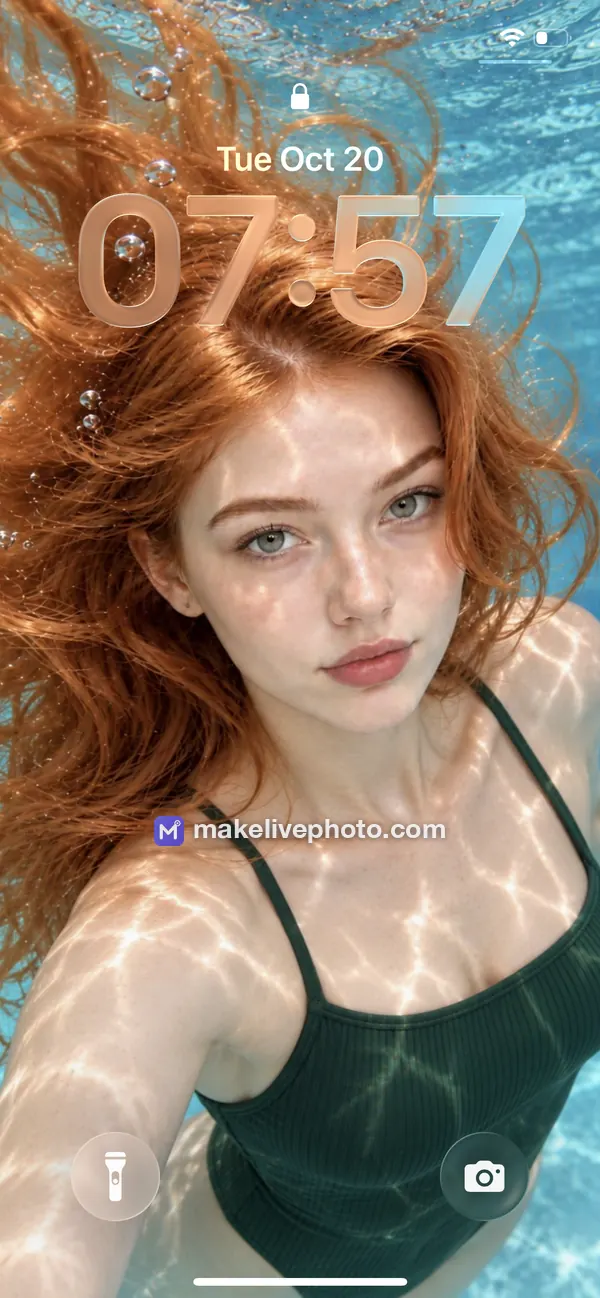
- Lock your iPhone and wake it. The picture plays a short motion.
Live Wallpaper vs Spatial Scene
iOS 26 added Spatial Scene on iPhone 12 and later, which turns a still photo into a 3D wallpaper that shifts as you tilt your phone. It is a depth effect: nothing in the picture actually moves. A Live Wallpaper plays real motion each time you wake your iPhone. Pick Spatial Scene for depth; make a Live Wallpaper for movement.
Live Photo or Live Wallpaper: what is the difference?
Every Live Wallpaper is a Live Photo, but not every Live Photo can be a Live Wallpaper. In Photos, a Live Photo plays when you press and hold it, whatever its cover image or length. The Lock Screen is pickier: it only plays Live Photos whose cover is a frame from the clip itself and that meet its other wallpaper requirements, which is why edited and converted files often fail. A file made for wallpapers works in both places, so you can still share it or post it like any other Live Photo.
How to change or turn off a Live Wallpaper
- Switch to another wallpaper: press and hold the Lock Screen, swipe to the one you want and tap it.
- Keep the picture, stop the motion: press and hold the Lock Screen, tap Customize, choose Lock Screen, then tap the play button in the bottom-left corner so it is crossed out.
- Delete it: press and hold the Lock Screen, swipe up on the wallpaper and tap the trash icon.
iOS keeps several Lock Screens side by side, so you can make a Live Wallpaper for every trip or season and swipe between them.
FAQ
How long does a Live Wallpaper move?
It plays a short motion each time you wake your iPhone, then settles on the still frame.
Does a Live Wallpaper drain the battery?
It only plays for a moment when you wake the phone, so the effect is small. When the battery is low and Low Power Mode turns on, iOS stops the motion on its own.
Can I post it on TikTok or Instagram?
Yes. On TikTok, add the Live Photo to a photo post and keep Live on: it moves as people swipe through. On Instagram, add it to your Story and press and hold the screen to turn it into a Boomerang. For Reels or a feed post, save it as a video first: in Photos, tap Share, then Save as Video. For posting you only need a regular Live Photo, which our free Live Photo maker makes from any photo, many at a time.
Why does my Live Wallpaper have no sound?
The Lock Screen never plays sound, not even for Live Photos taken with the iPhone camera. The Live Photo keeps its sound in Photos: press and hold it there to hear it.
How do I make a Live Wallpaper from a TikTok video?
Save the video to your phone, open the Video to Live Photo converter, pick the moment and choose Live Wallpaper. Only use videos you have the right to use.
Can I make a Live Wallpaper on Android?
Live Wallpapers in this form are an iPhone feature. On Android you can make a Motion Photo instead with our free Live Photo maker: choose Android Compatible before generating.
Can I make a Live Wallpaper on my computer?
Yes. Make and download it on your computer, send the file to your iPhone with AirDrop or the Files app, then set it as your wallpaper there.