Quick answer
"Motion Not Available" means iOS will set your Live Photo as a still wallpaper. Sometimes a setting on your iPhone is the cause, and you can fix it in a minute. More often the Live Photo itself is not one the Lock Screen can play, and the only fix is to use a Live Photo made for wallpapers.
What the Motion Not Available error looks like
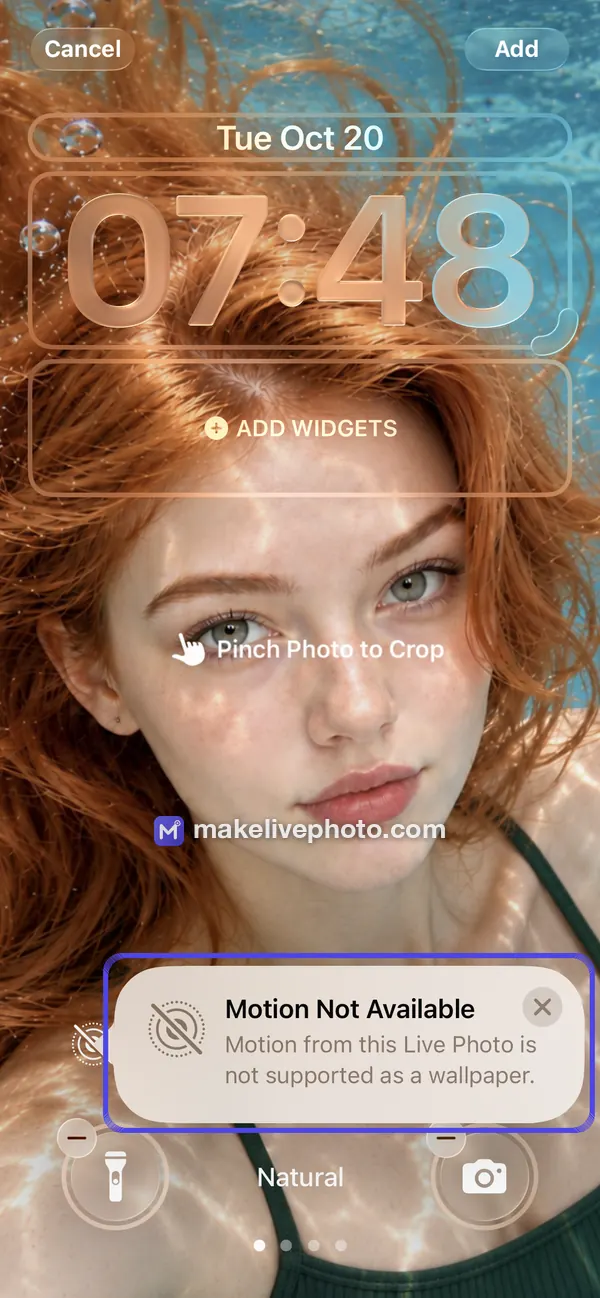
You pick a Live Photo in Settings > Wallpaper, or tap Share > Use as Wallpaper in Photos. Instead of playing, the preview shows a card that says Motion Not Available and "Motion from this Live Photo is not supported as a wallpaper." The play button in the bottom-left corner is greyed out or has a line through it.
Step 1: Check the four settings behind Motion Not Available
These settings stop any Live Wallpaper from moving, even a good one. Check them first.
- Low Power Mode is off. Go to Settings > Battery (Settings > Battery > Power Mode on iPhone 15 and later). iOS pauses wallpaper motion to save power, and the play button turns grey while Low Power Mode is on.
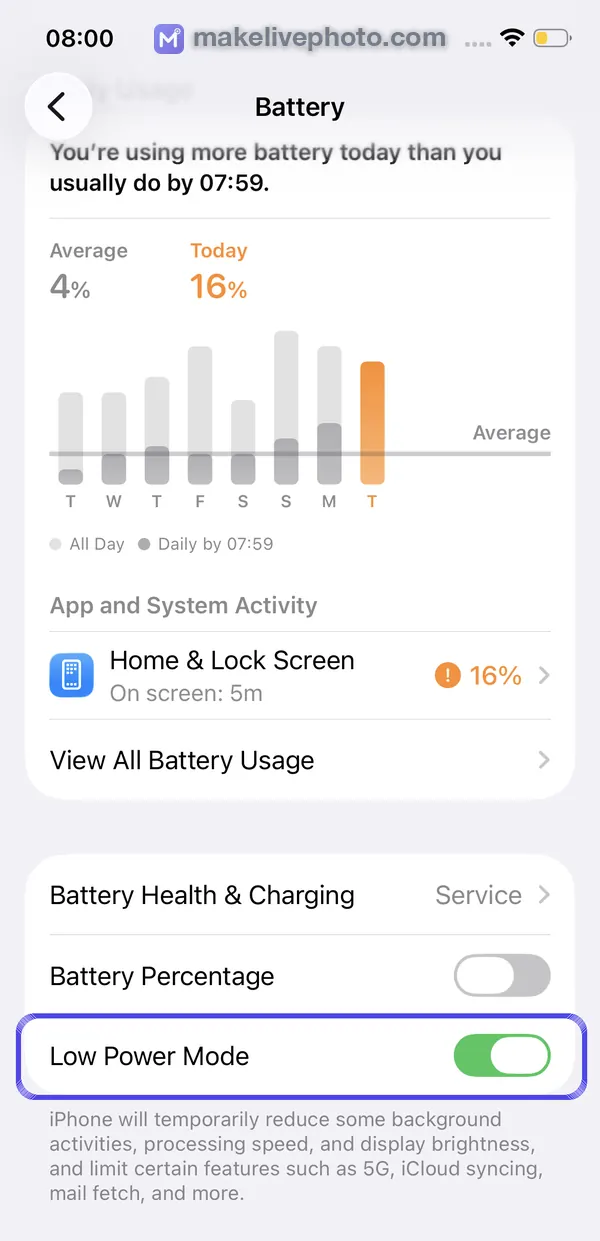
Turn this switch off. - Reduce Motion is off. Go to Settings > Accessibility > Motion.
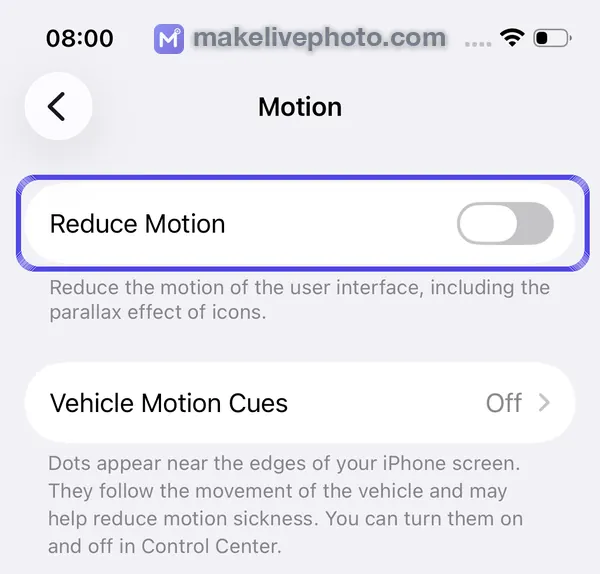
Reduce Motion should be off, like this. - Your iPhone runs iOS 17 or later. iOS 16 could not use Live Photos as wallpapers at all. Check in Settings > General > About.
- The play button is on when you set the wallpaper. Tap it in the bottom-left corner of the wallpaper editor so it is not crossed out.
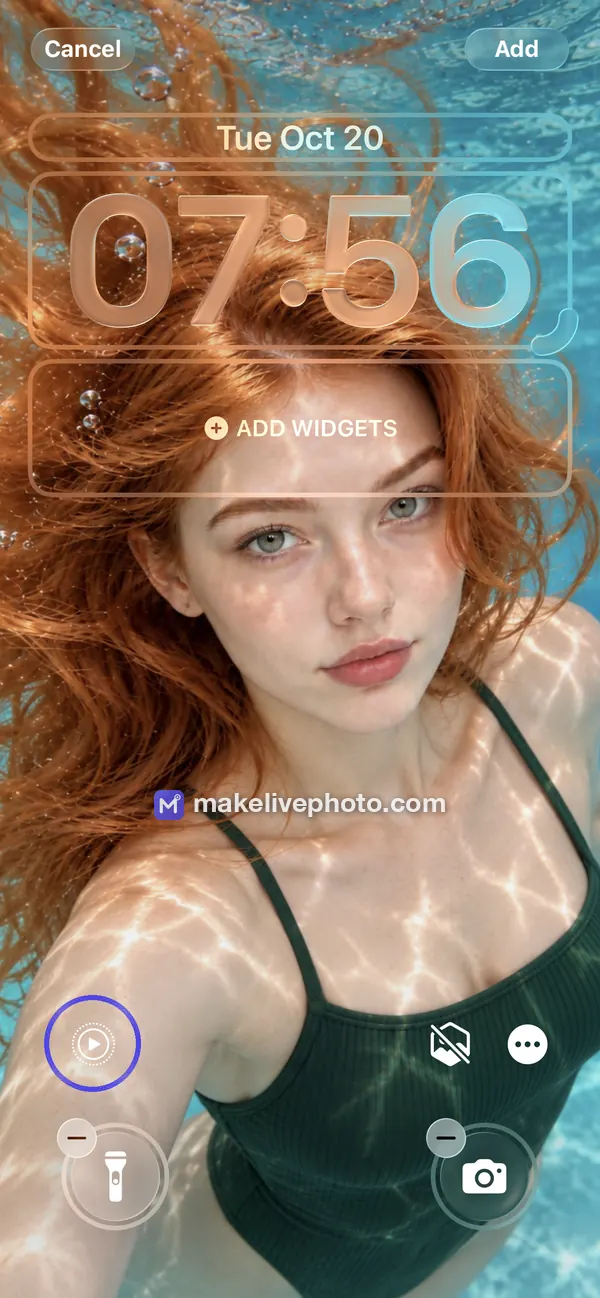
Play button on: no line through it.
If Motion Not Available still shows after all this, the problem is the file, not your iPhone. Go to step 2.
Step 2: Fix Motion Not Available with a Live Photo made for wallpapers
The Lock Screen only plays Live Photos that meet its own requirements, which are stricter than what the Photos app needs to play a Live Photo. That is why the same Live Photo can play fine in your album but refuse to move as a wallpaper. Files that most often fail:
- Live Photos made from a video with a converter app or website
- Live Photos saved from social media or downloaded from the web
- Screen recordings turned into Live Photos
- Some Live Photos from your own camera, especially ones that were edited or cropped
Restarting your iPhone or resetting settings will not change the file. You need a Live Photo that was built for the Lock Screen.
Worth a try: crop to the wallpaper shape
Some people get a stubborn Live Photo to work by cropping it to the screen's shape first: open it in Photos, tap Edit, choose Crop, and pick the Wallpaper ratio. It does not work for every file, but it costs nothing to try.
Other causes of Motion Not Available
If a Live Photo should work but still shows Motion Not Available, check these less obvious causes.
- The Live Photo was edited. A new key photo, a crop, a filter, or switching it to Loop or Bounce can stop it from playing as a wallpaper. Open it in Photos, tap Edit, then Revert to go back to the original, and try again.
- It came from a wallpaper app or website. These files often play in Photos but fail on the Lock Screen. That is a file problem, so step 2 is the fix.
- It stopped after an iOS update. A wallpaper that used to move can show Motion Not Available after an update. Press and hold the Lock Screen, swipe up on that wallpaper, tap the trash icon, then add it again from Photos.
What is normal, not an error
Some things look like a broken Live Wallpaper but are simply how iOS plays it:
- It moves for a second or two when you wake the phone, then stops on the still photo. It does not loop.
- It plays without sound. The Lock Screen never plays sound, even for Live Photos from the iPhone camera.
- The Home Screen shows it as a still image. Only the Lock Screen plays the motion.
- It pauses while Low Power Mode is on. iOS offers to turn Low Power Mode on at 20% battery and turns it off once the phone charges past 80%, so the wallpaper can seem to stop and start on its own.
How to check that it moves
- Set the wallpaper with Live turned on.
- Lock your iPhone, then wake it by raising it or tapping the screen.
- The picture plays a short motion and settles. It plays each time you wake the phone.
FAQ
Why does my Live Photo play in Photos but not as a wallpaper?
Photos plays almost any Live Photo. The Lock Screen accepts only Live Photos that meet its wallpaper requirements, so a file can pass one check and fail the other.
Will restarting or updating my iPhone fix it?
Only if a setting or a bug was the cause. If the file itself is not supported, it will still show "Motion Not Available" after a restart.
Is "Spatial Scene" the same thing?
No. Spatial Scene, added in iOS 26, gives a still photo a 3D depth effect as you tilt your phone. A Live Wallpaper actually plays motion when you wake your iPhone. Read more in how to make a Live Wallpaper on iPhone.
Does Motion Not Available mean my iPhone is too old?
Usually not. Every iPhone that runs iOS 17, which means iPhone XS, iPhone XR and later, can use Live Photos as wallpapers. If yours runs iOS 17 or later, the cause is a setting or the file.
Why did my Live Wallpaper stop moving?
Check Low Power Mode first: it may have turned on when the battery ran low. If the editor now shows Motion Not Available, delete the wallpaper and add it again from Photos.
Can I fix Motion Not Available without an app?
Yes. The settings in step 1 are built into iOS, and our Live Wallpaper Maker runs in Safari, so you can make a Live Photo the Lock Screen accepts without installing anything.
Can I just make a Live Photo for my album, TikTok or Instagram?
Yes. Our free Live Photo maker turns still photos into Live Photos, many at a time. Live Photos move in TikTok photo posts, and on Instagram you can post them to your Story as a Boomerang.