Live Wallpaper Maker for iPhone
Upload a photo, pick a motion, and get a Live Wallpaper that moves every time you wake your iPhone. Preview it free before you buy.
Supports JPG, PNG and WEBP (1080p or larger recommended)

- iOS 17+
- Moves when you wake it
- No app
Photo to Lock Screen
From a still photo to a Lock Screen that moves
Upload a photo and the Live Wallpaper Maker turns it into a wallpaper that moves each time you wake your iPhone. On the left, the photo you start with; on the right, the same photo on the Lock Screen.
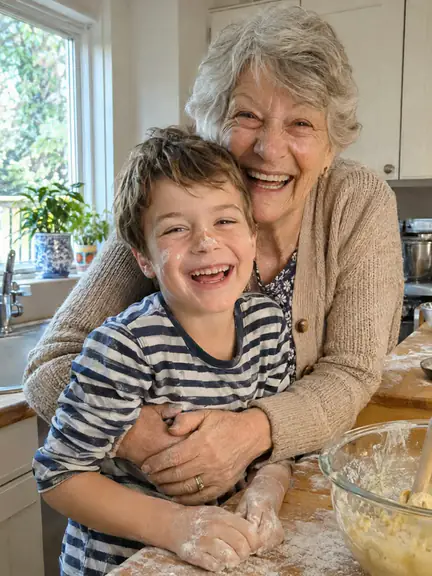
Grandma · AI1 / 7
Why MakeLivePhoto
A Live Wallpaper that really moves
Motion you choose
Pick a gentle zoom, a slow pan or a handheld shake. All three are free.
A real Live Photo inside
Every Live Wallpaper is also a Live Photo in your album that plays when you press and hold.
Moves when you wake it
Files from the Live Wallpaper Maker are tested on real iPhones, so they move on the Lock Screen.
No app to install
Make it in Safari on your iPhone, or on a computer and AirDrop it over.


How it works
How the Live Wallpaper Maker works
Step 1
Upload a photo
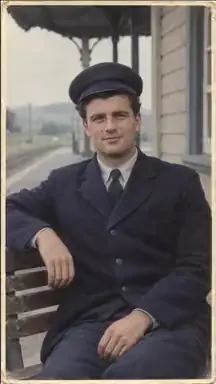
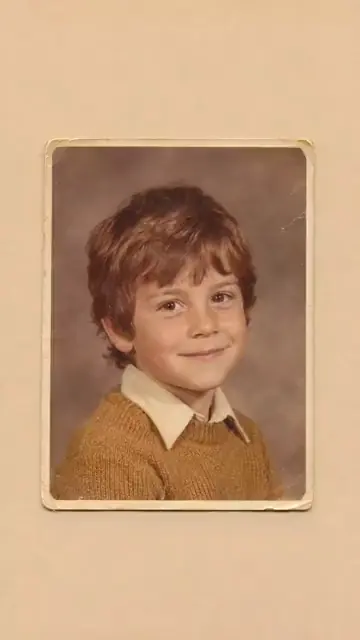
Any photo works: a pet, a portrait, a trip. Pick Gentle Zoom, Floating Pan or Handheld Shake.
Step 2
Preview and download
The Live Wallpaper Maker shows it on a Lock Screen preview first. Download it once you like how it moves.
Step 3
Set it as your wallpaper
Save it to Photos, tap Share, then Use as Wallpaper, and make sure the play button is on.

Free or AI
Free motion or AI motion for your Lock Screen
Your Lock Screen plays a Live Wallpaper for only a second or two each time you wake the phone, so the kind of motion matters. The three free motions in the Live Wallpaper Maker move the camera: a slow zoom, a drift to one side or a light handheld shake. The photo itself stays still and calm.
With AI motion, the people, pets or scenery in your photo move on their own instead of the camera. That is much easier to notice in the short moment the Lock Screen plays, and the AI result can be saved as a Live Wallpaper too.

Why it is easier
No app. The whole thing happens in your browser.
Most wallpaper apps send you to the App Store for the last step. The Live Wallpaper Maker builds the finished Live Wallpaper right in Safari, so you can do everything on your iPhone, or make it on a computer and AirDrop it over.
| Typical wallpaper app | MakeLivePhoto | |
|---|---|---|
| Install an app | Required to finish | Not needed |
| Works in iPhone Safari | Rarely | Yes, start to finish |
| Make it on a computer | Phone only | Yes |
| See it before you pay | Varies | Free Lock Screen preview |
Choosing a photo
Photos that make a great Live Wallpaper
Any photo works in the Live Wallpaper Maker, but the Lock Screen puts the clock and widgets on top of your picture and crops it to your screen. These five checks help it look right as a Lock Screen wallpaper.
Leave room for the clock
The time and date cover the top third of the screen. Pick a photo with sky, a wall or a soft background up there, so faces and the main subject are not hidden behind the clock.
Keep the subject in the middle or lower half
People, pets and objects near the centre stay clear of the clock, and the flashlight and camera buttons only cover the bottom corners.
Use a vertical photo
An iPhone screen is tall. A portrait photo fills it with little cropping, while a landscape photo loses its sides and zooming into a small part of it makes it softer.
Depth Effect or motion, not both
Depth Effect tucks the clock behind your subject, but iOS does not combine it with a moving Live Photo wallpaper. With motion on, the clock sits in front of the picture.
Sharp, well-lit photos look better
A moving wallpaper shows every detail large and bright, so blur is easy to spot. Use the original photo from your camera roll rather than a screenshot or a compressed copy saved from a chat app.

Built for the Lock Screen
Your photo, moving on your Lock Screen
The Live Wallpaper Maker makes a file the Lock Screen can play, so your photo moves there, not just in Photos.
- Set it from Photos with Use as Wallpaper
- Moves every time you wake your iPhone
- Tested on real iPhones with iOS 17 and later
Seeing "Motion Not Available" with a Live Photo from somewhere else? Here is why and how to fix it
Setting it
How to set a Live Photo as your Lock Screen wallpaper
Once the file from the Live Wallpaper Maker is saved in Photos, you can set it in two ways, the same on iOS 17, iOS 18 and iOS 26. iOS 16 cannot use Live Photos as wallpapers, and Spatial Scene in iOS 26 is a 3D depth effect for still photos, not motion.
- From Photos: open the Live Photo, tap Share, then Use as Wallpaper.
- From Settings: go to Wallpaper > Add New Wallpaper, tap Photos, then pick it from the Live Photos album.
- In the wallpaper editor, check that the play button in the bottom-left corner is on, then tap Add.
- Lock your iPhone and wake it. The picture moves for a moment, then rests on the still photo. Not moving? Read our full guide with screenshots.
Before you start
- An iPhone with iOS 17 or later. The Live Wallpaper Maker itself runs in any browser.
- Low Power Mode turned off. iOS pauses wallpaper motion to save battery.
- Reduce Motion turned off in Settings > Accessibility > Motion.
What it costs
- Lock Screen preview
- Free
- Regular Live Photo
- Free
- Live Wallpaper download
- Free for VIPs, unlimited for 90 days. Any pack from $4.99
If your Live Wallpaper doesn't move on an iPhone running iOS 17 to iOS 26, we refund your pack in full.
Know before you start
What the Live Wallpaper Maker gives you, and what it does not
Everything the Live Wallpaper Maker makes, its limits and its specs, in one place.
What you get
- A Live Wallpaper that moves on the iPhone Lock Screen each time you wake it
- The same picture as a regular Live Photo, playing in Photos when you press and hold
- Three free motions: Gentle Zoom, Floating Pan and Handheld Shake
- A free Lock Screen preview before you download
- Optional: AI motion, where the people, pets or scenery in your photo move
What it does not do
- The free motions do not upload your photo: they run in your browser
- No motion on the Home Screen: iOS plays it on the Lock Screen only
- No sound on the Lock Screen, which iOS never plays
- Not a looping video: it moves for a moment, then rests on the photo
- No Live Wallpapers on iOS 16 or Android; Android gets a free Motion Photo instead
Specs
- Photos
- JPG, PNG and WEBP, 1080p or larger recommended
- Live Wallpaper length
- 3 seconds
- Free motions
- Gentle Zoom, Floating Pan, Handheld Shake
- Download
- A ZIP with the Live Wallpaper, a regular Live Photo and a read-me
- iPhone
- iOS 17 or later (iPhone XS, XR and newer)
- Live Wallpaper download
- Paid, see What it costs
- Sign-up
- Only to download the Live Wallpaper
- Works in
- Safari on iPhone, any desktop browser
Live Wallpaper Maker FAQ
Is the Live Wallpaper Maker free?
The Lock Screen preview and a regular Live Photo of the same picture are free, with no sign-up. Live Wallpaper downloads are free for VIPs: any credit pack from $4.99 makes you a VIP for 90 days of unlimited downloads, with no subscription. If your Live Wallpaper does not move on an iPhone running iOS 17 to iOS 26, we refund your pack in full.
How do I make a Live Wallpaper on iPhone without an app?
Open the Live Wallpaper Maker in Safari, upload a photo and pick Gentle Zoom, Floating Pan or Handheld Shake. Tap Start generating, check the Lock Screen preview, then download it and save it to Photos. In Photos, tap Share, then Use as Wallpaper, and keep the play button on. The full guide has screenshots of every step.
Can I make a Live Wallpaper from a video?
Yes. Use our Video to Live Photo converter: upload the video, pick the moment and choose Live Wallpaper. A Live Wallpaper is always 3 seconds long and plays silently on the Lock Screen.
How long does the Live Wallpaper move?
It plays a short motion each time you wake your iPhone, then settles on the still photo. This is how iOS plays every Live Wallpaper. It moves on the Lock Screen only; the Home Screen shows the same picture as a still Home Screen wallpaper, which is normal.
Does the Live Wallpaper Maker work on Android?
Live Wallpapers are an iPhone feature. On Android, choose Android Compatible above to make a free Motion Photo instead.
Can I use the Live Wallpaper Maker on a computer?
Yes. Make and download it on your computer, then send the file to your iPhone with AirDrop or the Files app and set it as your wallpaper there.
Does the Live Wallpaper Maker upload my photo?
Not with the free motions: your photo is processed in your browser, and our server only checks the finished file so it plays on the Lock Screen. AI motion is different: it runs on our servers, your photo is deleted within 24 hours, and the result is kept for 30 days so you can download it again.
What if it does not move?
Check that Low Power Mode and Reduce Motion are off and that the play button is on when you set the wallpaper. If it still stays still on iOS 17 to iOS 26, email support@makelivephoto.com and we will refund your pack in full.
Does a Live Wallpaper drain the battery?
Very little. It plays for a second or two when you wake your iPhone, and the rest of the time it is a still photo like any other wallpaper.
Why does it stop moving in Low Power Mode?
iOS pauses wallpaper motion to save battery while Low Power Mode is on. iOS offers to turn it on at 20% battery and turns it off again once the phone charges past 80%. Turn it off in Settings > Battery (Settings > Battery > Power Mode on iPhone 15 and later) and the motion comes back.
Why is my Live Wallpaper silent?
The Lock Screen never plays sound, not even for Live Photos taken with the iPhone camera. That is how iOS works, not a problem with your file. Press and hold the Live Photo in Photos to hear its sound, if it has one.
Can I go back to my old wallpaper?
Yes. Press and hold the Lock Screen, swipe to your previous wallpaper and tap it. iOS keeps your earlier wallpapers there until you delete them.
More ways to make photos move



Ready to make yours?
Pick a photo and the Live Wallpaper Maker shows it on a Lock Screen preview in seconds.
Choose a photo
Updated By the MakeLivePhoto team